

Using the Digital Microscope to Monitor Air Quality
How To Use the WiFi Digital Microscope
Fully Charge the Microscope Before Use:
- Fully charge the microscope using the included 5V/1A USB charger before use. Do not use a 12V charging cable.
- When charging, the red indicator light stays on and will turn off when the device is fully charged.
- This lithium battery is 800 mAh; it takes 2 hours to fully charge and can be used for about 2 hours after charging.
- Charge the device when the video or image quality is choppy or deteriorating.
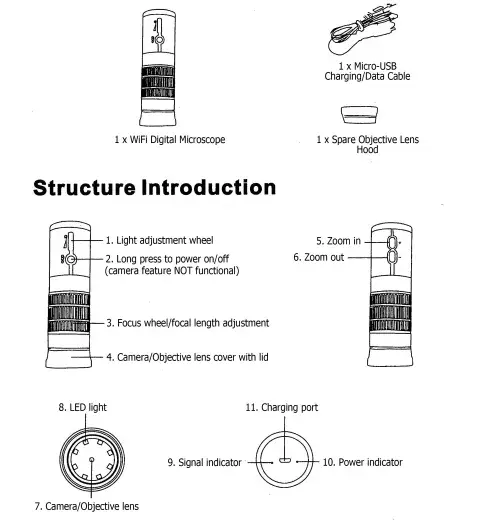
Using WiFi Digital Microscope with an internet-connected smart device
Step 1
Download and install “DM WiFi” app (iOS | Android).
Step 2
Long press the Power button to turn on the WiFi Digital Microscope. When the device is on, the LED light is also on.
Step 3
Open Settings on your smart device and tap "Wi-Fi" or "Network & Internet".
Step 4
Search for and tap “DM WiFi_XXXX” in the list of Wi-Fi networks detected by your device to connect. (no password needed). Note: XXXX is the microscope’s serial number in letters and numbers.
Step 5
When connected, a message “No Internet Connection” may appear right under the network name. This means your microscope is connected to your phone via DM WiFi network and ready for use, but you are not able to access the Internet or Internet-required apps until you disconnect from DM WiFi.
Step 6
Exit Settings of your device and return to the Home Screen to open the DM WiFi app. If connected, after pass the welcome screen, you will see a blur image of the specimen or object the microscope is pointing or setting on.
Step 7
Twisting the focus wheel to bring the object/specimen into focus.
Step 8
(If needed), Rotate the light-adjusting wheel up or down to adjust the brightness of the LED light.
Step 9
(If needed) Adjust resolution for image quality by tapping the Resolution button.
Step 10
To photograph or record the object/specimen, center it in the field of view (FOV) and press the camera or record button in the app.
Step 11
When finished, power off the microscope, and your smart device shall automatically reconnect to an Internet-accessible Wi-Fi network.
Step 12
To manually switch back to an Internet accessible Wi-Fi network, go back to the Settings of your device, tap on “Wi-Fi” or “Network & Internet” to select, and tap a Wi-Fi network you wish to connect to.
Using WiFi Digital Microscope with a PC
Step 1
Open the default media application in your computer (e.g., Windows Camera or QuickTime Player for Mac users), or download and install ViewPlayCap or Smart Camera app.
Step 2
Power on the microscope.
Step 3
Connect the microscope to the USB port of your computer using the micro USB cable (included in the kit). Your computer will install and set up the “General UVC” driver.
Step 4
Open the application mentioned in Step 1, click “Device” or the camera icon, and select the “General UVC” option. If the option is not listed, search online for the“General UVC” driver, then download and install it on your computer.
Step 5
Twist the focus wheel to bring the specimen in the field of view (FOV) into focus.
Step 6
To photograph or record the specimen you are observing, click the camera or record button in the media application on your computer screen.
Step 7
When finished using the microscope, power it off by pressing the (+) and power button simultaneously.
Frequently Asked Questions
Mobile phone support: IOS/Android. PC support: Windows/Mac. Does not support other systems, such as Linux/Chrome OS.
Sorry, it can't.
Sorry, our microscope has no waterproof function. You should avoid water entering the microscope, otherwise it may cause damage to the device.
They just simply amplify picture, which will reduce the picture after amplification, non vector amplification.
When you use it on the computer, after you take a picture, you need to copy it first, and paste it to the place you want to save.
No, it doesn't record sound.
When you connect the microscope to the computer with a data cable, the microscope will default to using the computer to observe the image, so the phone can’t search for the microscope's Wi-Fi signal.
Sorry, you can only view pictures in real-time on one device at a time.
The “+ -” button on the product can only be used on a smartphone. On a computer, we can only use fixed focal length.
When connecting the microscope to the computer with the data cable, make sure that the data cable you can use has a data transmission function, not just a charging function. Because some data cables only have a charging function and are without a data transmission function.